App · 06:00

Simple Multitrack Recording

Record every input, mix it down, send clean tracks to your DAW.

Platform
iPhone and iPad
Interface
Any class-compliant audio interface
Price
Free to try, one-time unlock
Release
Coming soon
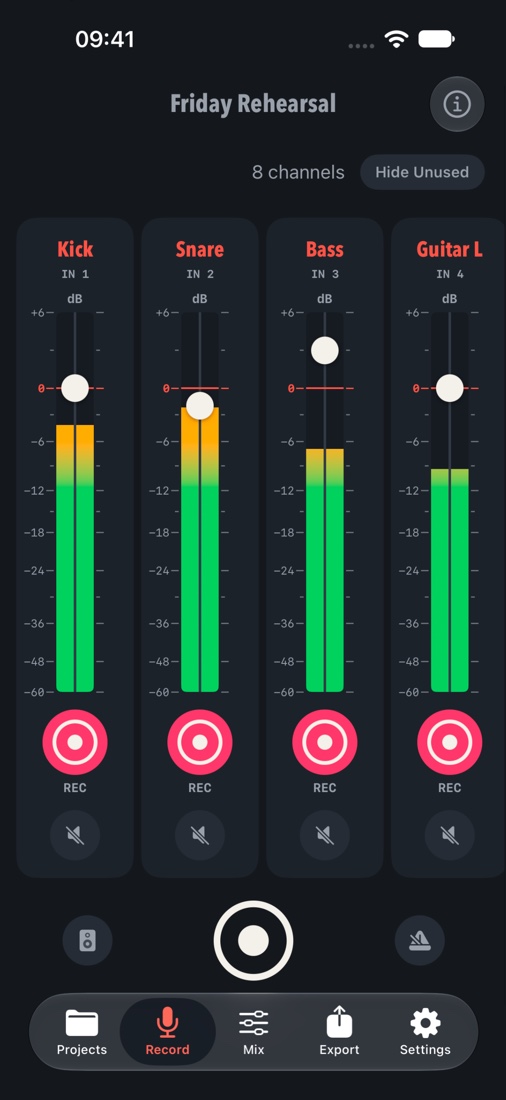
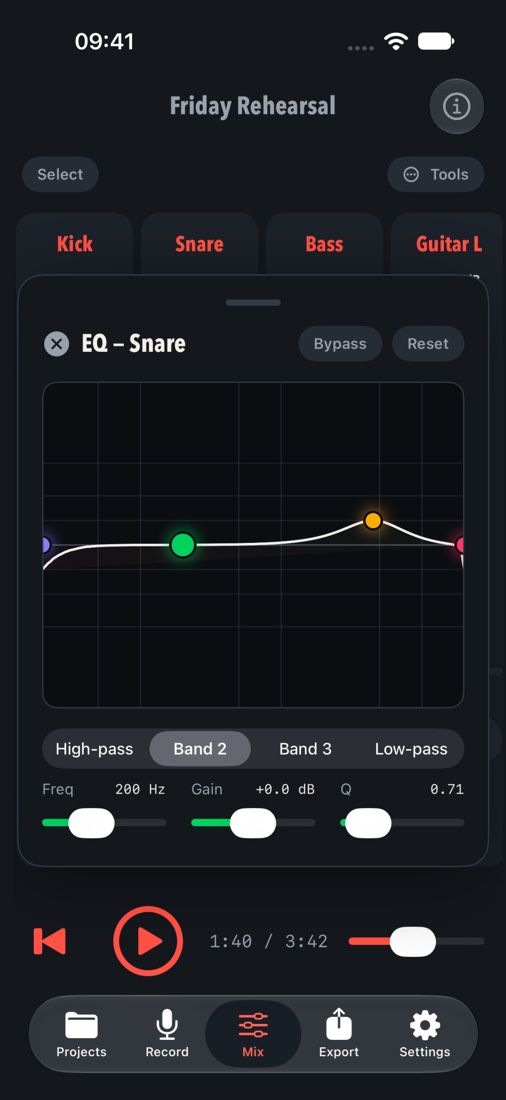
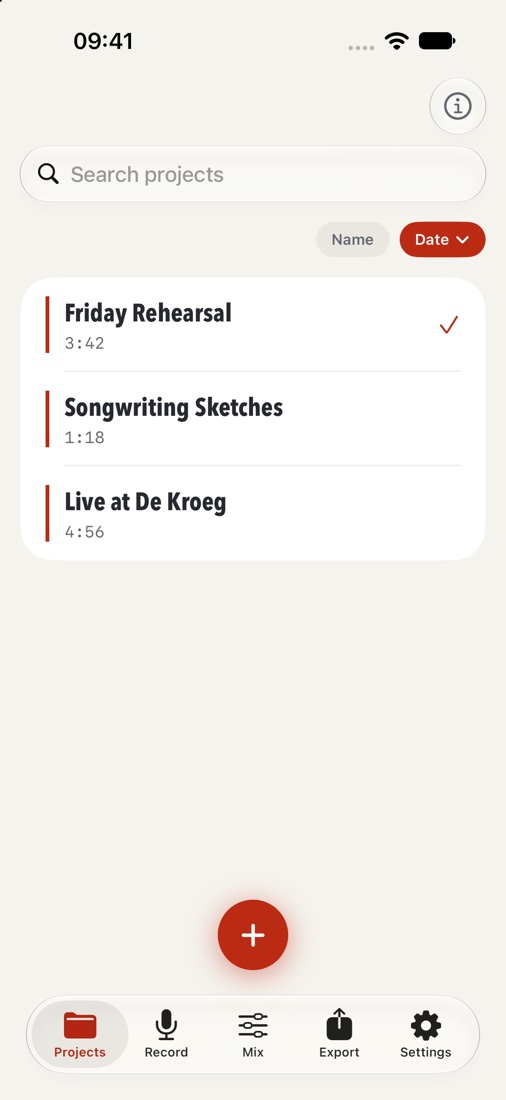
The Record tab, the Mix tab and the Projects screen on iPhone

what it does

The problem

Most recording apps are either a full DAW that gets in the way, or an app that only records one track. When you're tracking a rehearsal, a session or a gig, you just want every input captured cleanly and fast.

Record every input

Plug in your audio interface and every input it has shows up as its own track, with gain, mute, solo, monitor and record-enable per channel. Add a click track with its own tempo and time signature, or play along with an earlier take or an uploaded backing track while you record. A take keeps going even if your iPad locks or you switch apps.

Mix it down

Shape each track with a simple EQ, a compressor, reverb and delay, save the setup as a named preset, and export a full mixdown or every track separately, with or without effects, as 48kHz AIFF ready for Logic, Reaper, Cubase or Pro Tools.

Free to try

Simple Multitrack Recording is free to download, and your first three exports are free. A single one-time purchase unlocks unlimited exports for good. No subscription.

need help?

Questions, problems or ideas? Write to me and I will get back to you. Please say which device and audio interface you use and what you were doing.

Email support Privacy policy

Do I need special hardware?

Any class-compliant USB audio interface works. Plug it in before you open the app and its inputs show up automatically, named after the interface.

Can I choose which output I monitor on?

Yes. Settings has an output-device picker, and for multichannel interfaces a picker for which output channel pair Mix playback and monitoring use. Inputs stay automatic, since the app is built to be quick and simple on stage or on location.

What happens to a track once I've recorded it?

Every take is saved in the project as a 48kHz AIFF file on your device. Nothing is uploaded automatically — you choose if and when to export or share it.

I bought the unlock on another device. Where is it?

In Settings, choose Restore Purchases. The unlock is tied to your Apple ID, so it carries over automatically between your iPhone and iPad.

Where is my data, and how do I delete it?

Everything lives in the app's own storage on your device. Deleting a project removes its recordings; deleting the app removes the rest. The privacy policy has the details.

have a project in mind?

Tell me what you are making and when you need it. I reply to every enquiry personally.

Start a conversation